Reading Plans
Reading plans provide a pre-determined schedule of scripture readings. To access reading plans, navigate to the left main menu (☰) and choose Reading Plan.
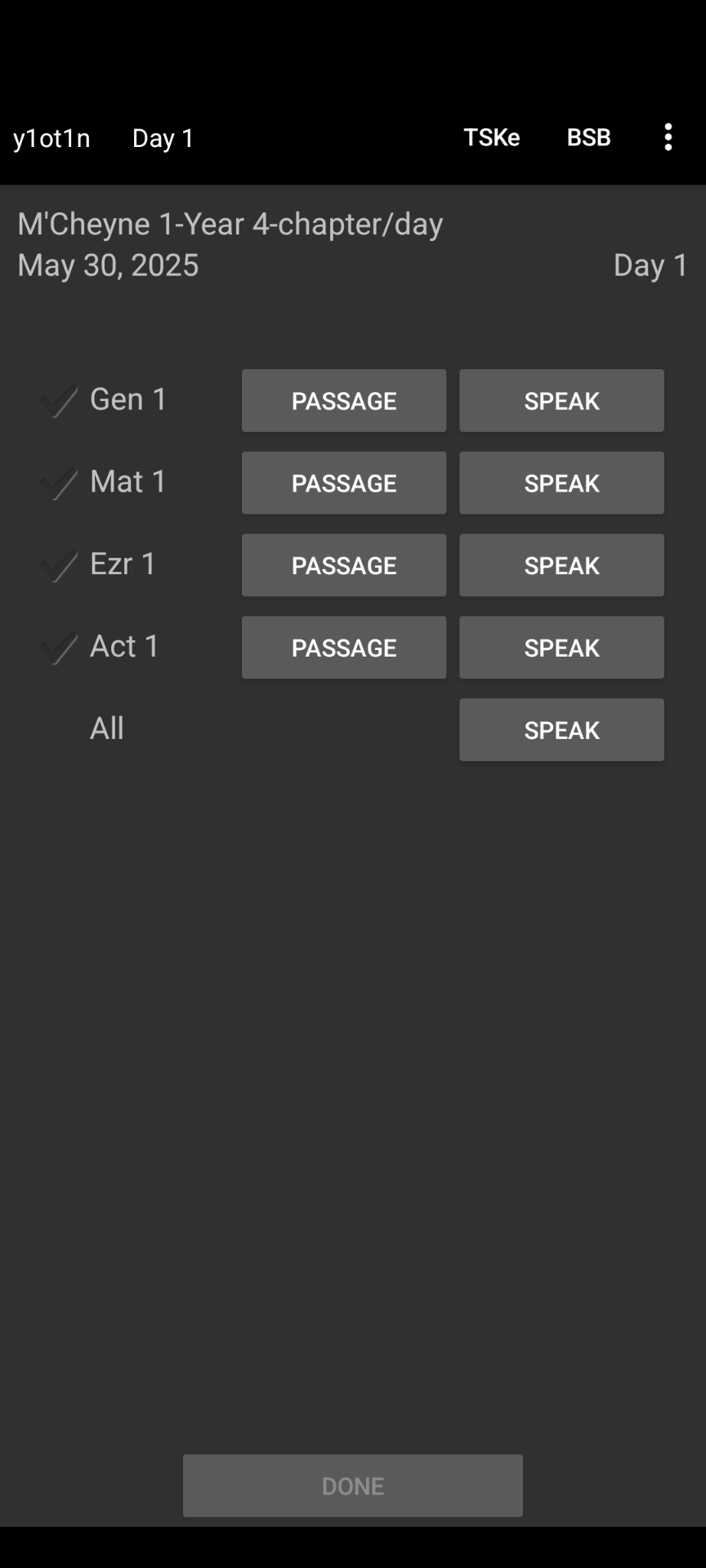
When first accessing Reading Plan, you will be prompted to select a plan. After selecting a plan, you will be shown the Daily Reading screen for the first day of the reading plan’s schedule.
Clicking the Done button will take you to the next day’s reading schedule. Note: The Done button will only be enabled after pressing either the Speak or Passage buttons for each passage that is listed. Alternatively, you can tap the check next to each passage to enable the Done button (manually checking the check marks can be useful if you’re reading in a paper Bible).


Abandon Reading Plan
Press the vertical 3-dot menu from the Daily Reading screen, and click Reset. Next time you return to the same Reading Plan, the progress will be reset to day 1.
Switch Between Reading Plans
From the Daily Reading screen, click the first button in the top lef of the toolbar. This will let you select a different reading plan. You can return to the original reading plan and your progress will remain where you left it. In other words, it is possible to use several reading plans simultaneously.
Preview Reading Plans or Go To Specific Day
When in the Daily Reading screen, click the second button in the top left of the toolbar. You will see a list of daily readings. Clicking on a daily reading will bring you to Daily Reading screen for that specific day.
Changing Reading Plan Start Date
To set the start date of a reading plan, select the vertical 3-dot menu from the Daily Reading screen and click Set Start Date… to pick a specific start date.
Set Specific Reading Plan Day to Today’s Date
This is useful if you started reading on a previous day and have just switched to AndBible. To update the current reading plan day to today’s date:
Open the Daily Reading screen for the reading plan you would like to adjust
Go to the specific day of the reading plan you want to set to today’s date.
Click the top right 3-dot menu
Click Set as current day.
Custom Reading Plans
It is possible to create your own custom reading plan for use with AndBible.
Note
If you create a reading plan that you think would be useful for other AndBible users, feel free to share it in our Matrix or Telegram chat!
The .zip Reading Plan Format
For a sample reading plan in .zip format, please see this file. This is a complete reading plan file that is ready to be imported into AndBible. It can be imported using the Backup and Restore functionality in the main menu (☰), or from the top right vertical 3-dot menu in the Reading Plan screen.
The compressed zip folder contains two directories:
mods.d(Contains the.conffile)
modules(Contains the.propertiesfile)
Note: The
modules`directory often has a longer path of foldersleading to the
.propertiesfile. See the.conffileDataPathproperty below for an example.
Once you are done preparing the mods.d and modules folders,
compress the 2 folders into a single .zip file. This zip file can then
be imported to AndBible.
Hint
Use a simple text editor to create the file e.g. Notepad++ and do not use something like Word.
The .conf file
For a sample .conf file, please see
this file.
This is the content of the Ninety days reading plan .conf file:
[NinetyDaysReadingPlan]
DataPath=./modules/texts/ztext/NinetyDaysReadingPlan/
Version=1.0
Description=Through the Bible in 90 days
ShortPromo=Challenge yourself and read through the entire Bible in 90 days
DistributionLicense=Public Domain
Category=And Bible
ModDrv=RawGenBook
Versification=KJV
AndBibleMinimumVersion=535
AndBibleProvidesReadingPlan=NinetyDaysReadingPlan.properties
A few notes about the contents of this file:
Categorymust beAnd Bible
ModDrvmust beRawGenBookThe default
Versificationis always KJV, so this only needs to be provided if you want a versification other than KJV. For more about versification, see here.
AndBibleMinimumVersionmust be535because that’s the version of AndBible when the zip format was first supported. Earlier versions of AndBible will use this to determine that this module is not supported.
AndBibleProvidesReadingPlanshould be set to the file name that exists in theDataPathset at the start of the file.
Note
If your reading plan is date-based you will need to add the following line
to the .conf file:
AndBibleReadingPlanDateBased=true
The .properties file
You will need to create a .properties file similar to the examples
here
The name of the file will be the name of the plan. The file extension must be
.properties and you must place it a sub-directory under the modules
directory. These will be translated to the current language when displayed in
AndBible. The file must contain a series of rows in the following format:
1=Gen.1, Matt.1
2=Gen.2, Matt.2
3=Gen.3, Matt.3
4=Ps.119
5=1Cor.1, Jude
It is possible to skip days. For example, if you do not wish to have a reading on the weekend:
1=Gen.1, Matt.1
3=Gen.2, Matt.2
You can also add a date-based reading plan, which includes the month and day
number for each day. The date-based plan will always open at today’s date by
default (The regular plan opens the current day, which is the last day you haven’take
yet completed). For a date-based plan, the .properties file must always
begin the readings at 1=, and the date must be in the format of 3 letters
for the month, then a dash and then a month day number followed by semicolon (;).
For example:
1=Jan-1;Gen.1-2,Ps.1-2,Matt.1-2
2=Jan-2;Gen.3-4,Ps.3-5,Matt.3-4
3=Jan-3;Gen.5-6,Ps.6-8,Matt.5
...
146=May-26;Jos 12,Isa 16,2Tim 2
...
334=Nov-30;Est 7-8,Oba,Heb 3-5
As mentioned in the .conf file section, you must add the following line to
the .conf file when using a date-based plan:
AndBibleReadingPlanDateBased=true
Example reading plans can be found here.